Family accounts give parents one shared place to invite children, set up Study, and decide who can use AI Tutor. Use this page when you are setting up iDroo for homework help or independent practice at home.
Family Accounts and AI Tutor Seats

Finish family setup
When you set up iDroo as a parent, iDroo shows a family setup checklist with the next steps: add children, try AI Tutor, subscribe to the Study Plan, and optionally add the AI Tutor add-on.
Use the checklist actions to jump to the right place. If this is your first child invite, the setup continues as part of the same flow.

Invite children and set learning details
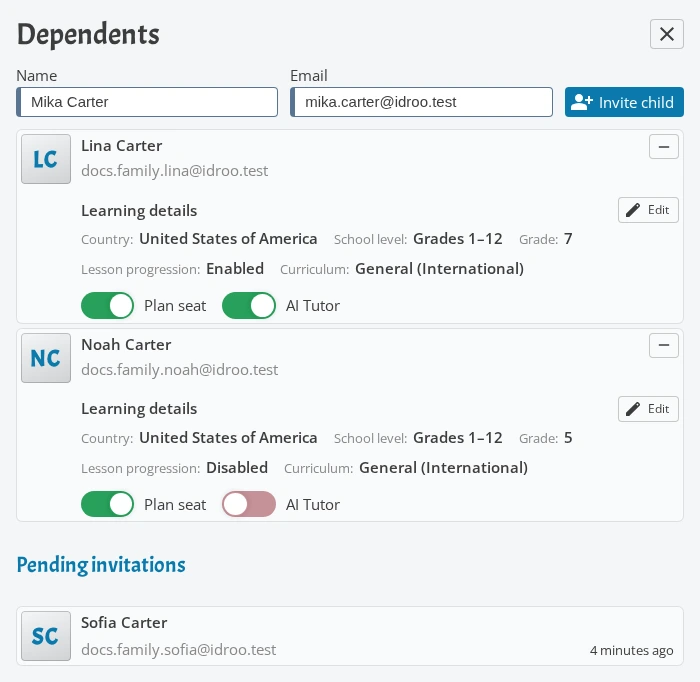
Open Settings → Users. In the Dependents section, parents can invite children by name and email address. Pending invitations stay visible until they are accepted or canceled.
After joining, children appear in your family list. Parents can edit learning details such as country, school level, grade, curriculum, and lesson unlock rules. These details help iDroo show suitable learning material. Children can also view and update their own learning details in Profile.
Manage plan seats and AI Tutor seats
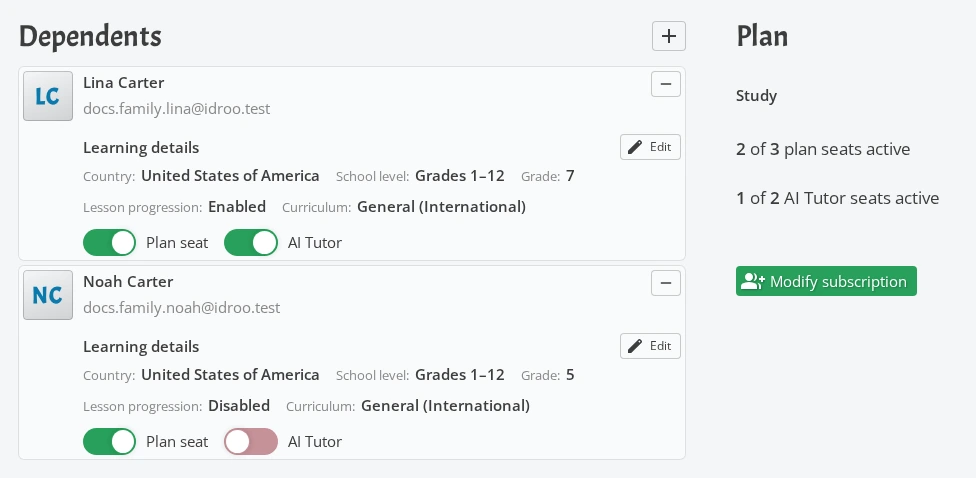
Plan seats and AI Tutor seats are separate. Give a child a plan seat so they can use the Study Plan. Turn on AI Tutor access for a child when your subscription includes an available AI Tutor seat. AI Tutor access needs plan access for that child first.
If no seats are available, the toggle is disabled until you change the subscription or free a seat. Turning off plan access for a child also removes that child's AI Tutor access.
What children see after joining
Children accept the invitation and then sign in with their own iDroo account. With plan access, they can use Study and other plan features. When AI Tutor access is enabled, AI Tutor is available on boards and in Study, subject to the plan usage limits.