Boards can be an open-ended infinite canvas or a structured stack of document pages. Use document pages when a lesson, worksheet, slide deck, or imported PDF should keep page boundaries and export cleanly back to PDF.
Board layouts and document pages
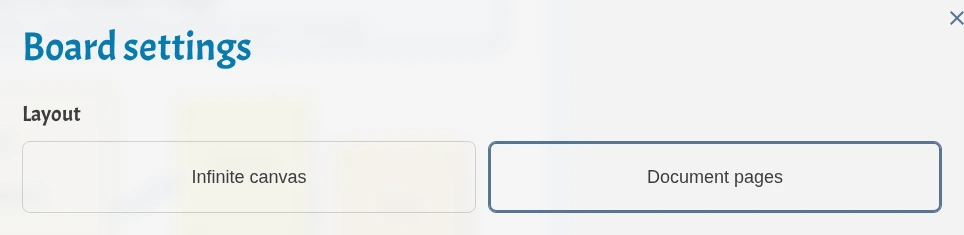
Choose a board layout
Open Board settings from the board toolbar or menu, then choose a layout.
- Infinite canvas is the regular expandable whiteboard. It is best for free-form tutoring, brainstorming, diagrams, and content that grows in any direction.
- Document pages creates an A4-style page stack. It is best for worksheets, printable notes, slide-style lessons, and boards built from imported documents.
If the board already has content that is much larger than one page, iDroo asks for confirmation before switching to document pages.
Work with pages on the board
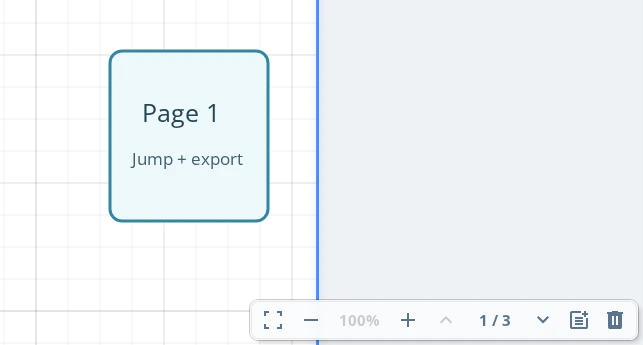
In document layout, the navigation panel shows page controls instead of the mini-map.
- Use the previous and next buttons to move through the stack.
- Click the page count to open the page list and jump to a specific page.
- Click + to add a blank page after the current page.
- Use the delete button to remove the current page and the content on it.
Pages stay in a vertical stack with space between them, so you can scroll naturally while still keeping clear page boundaries.
Import document page ranges
When a document has multiple pages, you can choose exactly which pages to insert. Use individual page numbers, ranges, or a mix such as 1-3, 5.
On an infinite canvas, choose Row, Grid, or Column to control how the selected pages are placed on the board.
On a board that already uses document pages, imported pages are inserted into the page stack after the current page or where you drop them. In that case the row/grid/column choice is not shown because iDroo keeps the document page stack aligned for you.
Export pages as a PDF
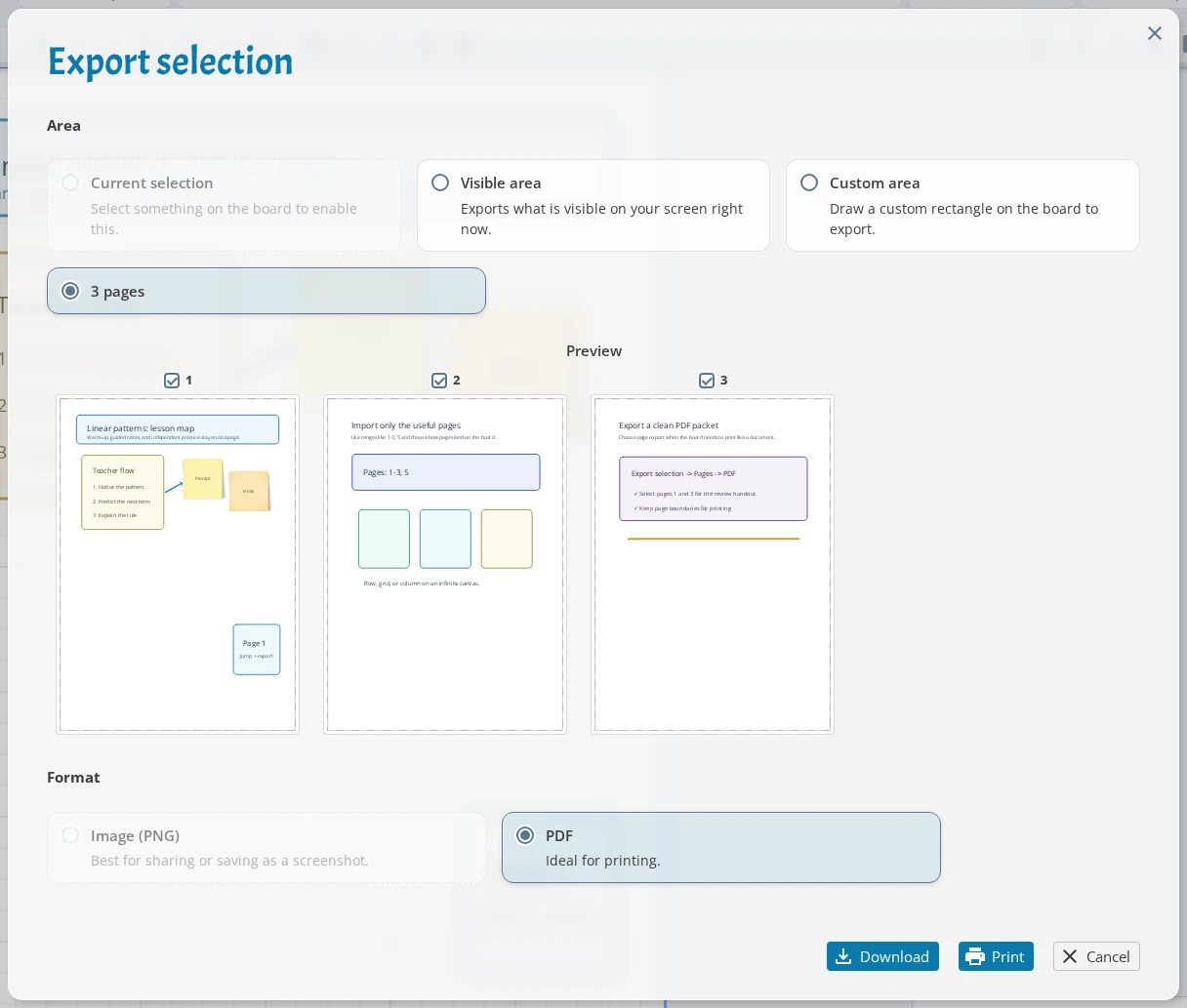
Use Export selection when you want to choose which board pages to export. Select Pages, pick the pages you need, and download a PDF.
Each selected board page becomes its own PDF page. If you need an image, transparent background, extra padding, or a custom crop, switch to Selection, Visible area, or Custom area instead.
Details to remember
- Document pages are part of the board, so drawings, text, images, and equations can sit on top of them like other board content.
- Deleting a document page deletes the content on that page too.
- Page export creates PDF files. PNG export is for selected, visible, or custom board areas.
- Use the infinite canvas when page boundaries would get in the way; use document pages when the final shape matters.