Snippets let you capture any selection of objects on a board and save it as a reusable file. They preserve layout, styling, and fonts, so you can drop the same content into future sessions without redrawing it.
Snippets
Save a selection as a snippet
- Select the objects you want to reuse.
- Right-click and choose Save as snippet.
- Keep the suggested name (uses your board title) or rename it before saving.
- The file uploads to your Snippets tab in the Files drawer.
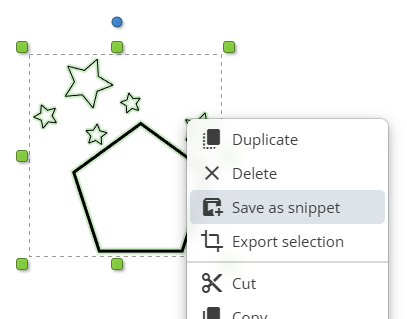
Use snippets in boards, courses, and assignments
- Open the Files drawer, switch to Snippets, and click a snippet to place it at the center of your view.
- Or drag a snippet onto the canvas to drop it exactly where you want it.
- Snippets can also be attached to course items and assignment tasks; learners see them like images and can open them in the snippet viewer.
Fonts and equations load automatically before the snippet is placed, so everything looks like it did when you saved it.
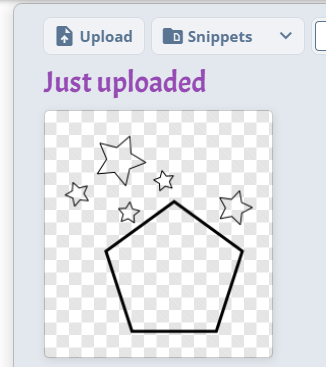
Manage snippets in Files
Find all snippets under the Snippets filter in Files on the dashboard or in the board drawer.
- Rename a snippet from its card and organise it into folders.
- Preview it with a thumbnail or open it to see the captured board area.
- Snippets count toward storage like other files, so tidy up old ones when you no longer need them.