Assignments that keep your class on track

Create homework, quizzes, and tests with clear due dates. Build questions, share with the right people, and review responses in one place.

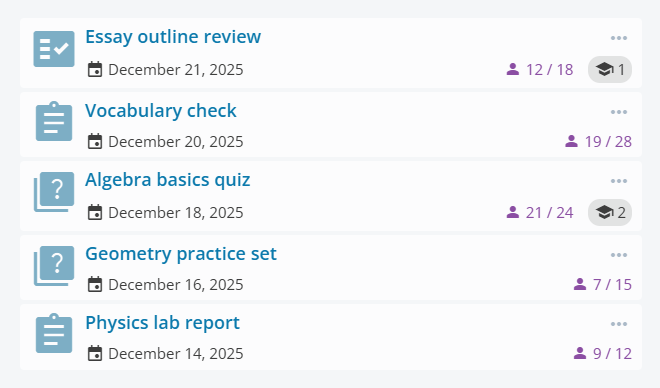
Assignments overview in iDrooAssignments overview in iDroo

What you can do with assignments

Mix question types

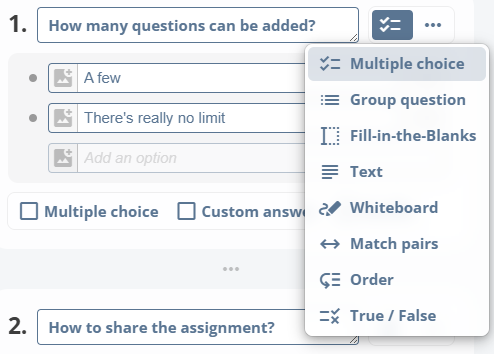
Use multiple choice, grouped questions, fill-in-the-blanks, text, whiteboard drawings, match pairs, order, and true/false in the same assignment.

Give clear instructions

Add descriptions, images, or your own whiteboard drawings to questions and preview everything before sending it out.

Assign with control

Share via email or link, set a single due date or tailor it per person, and let invitees create an account if they don't have one yet.
Create tasks quickly

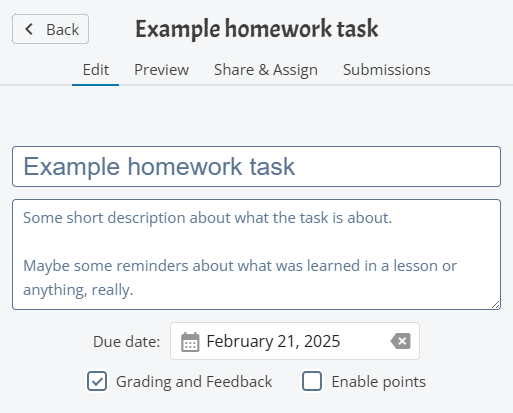
  • Start from New assignment, add a title, and include an optional description.
  • Set an overall due date up front, then keep grading or points turned on when you need them.
  • Use the Preview tab to check the experience before you share it.
Creating an assignment in iDroo

Question types that fit your lesson

Use flexible question types so you can cover practice, homework, or tests in one place:

  • Multiple choice (single or multiple answers) with shuffled options or a custom “Other” response.
  • Group, match pairs, and order questions for structured tasks.
  • Fill-in-the-blanks and text for written answers.
  • True/False for quick checks.
  • Whiteboard questions when drawing is the best way to answer.

Every question can include images or your own whiteboard drawing to guide students.

Adding questions to an assignment

Share with the right people

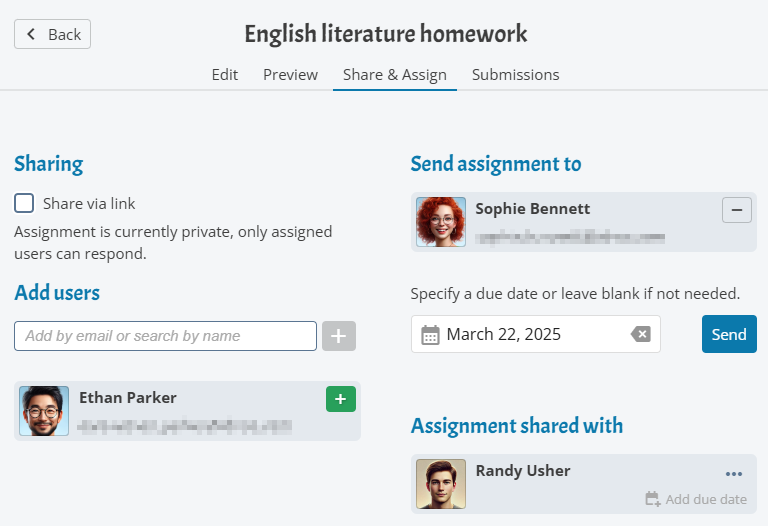
Assign work directly from the Share & Assign tab:

  • Add people by name or email and set a due date for everyone or per person.
  • Turn on Share via link when you need an easy join link.
  • People without an account get an email invitation so they can sign up and start the assignment.
Sharing an assignment and setting due dates

Track progress and deadlines

See how work is moving from the Submissions tab:

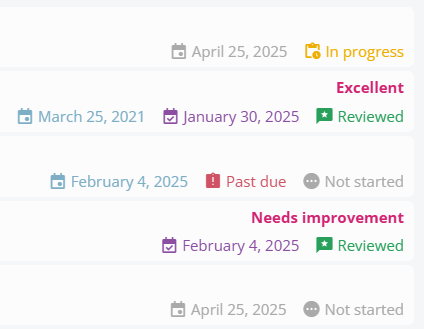
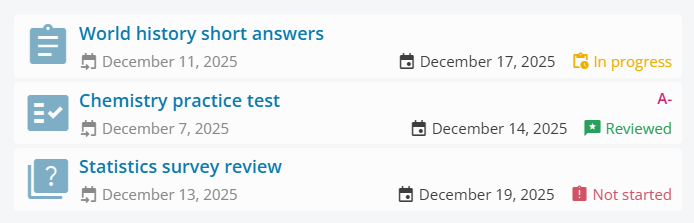
  • Statuses show who is not started, in progress, or completed.
  • Due dates and submitted times highlight items that are past due.
  • Open any row to read the submission, and download all responses to an Excel file when you need a report.
Tracking assignment submissions and due dates

Review with context

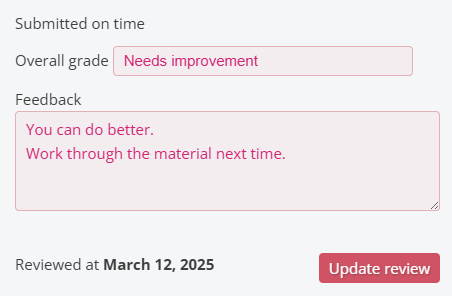
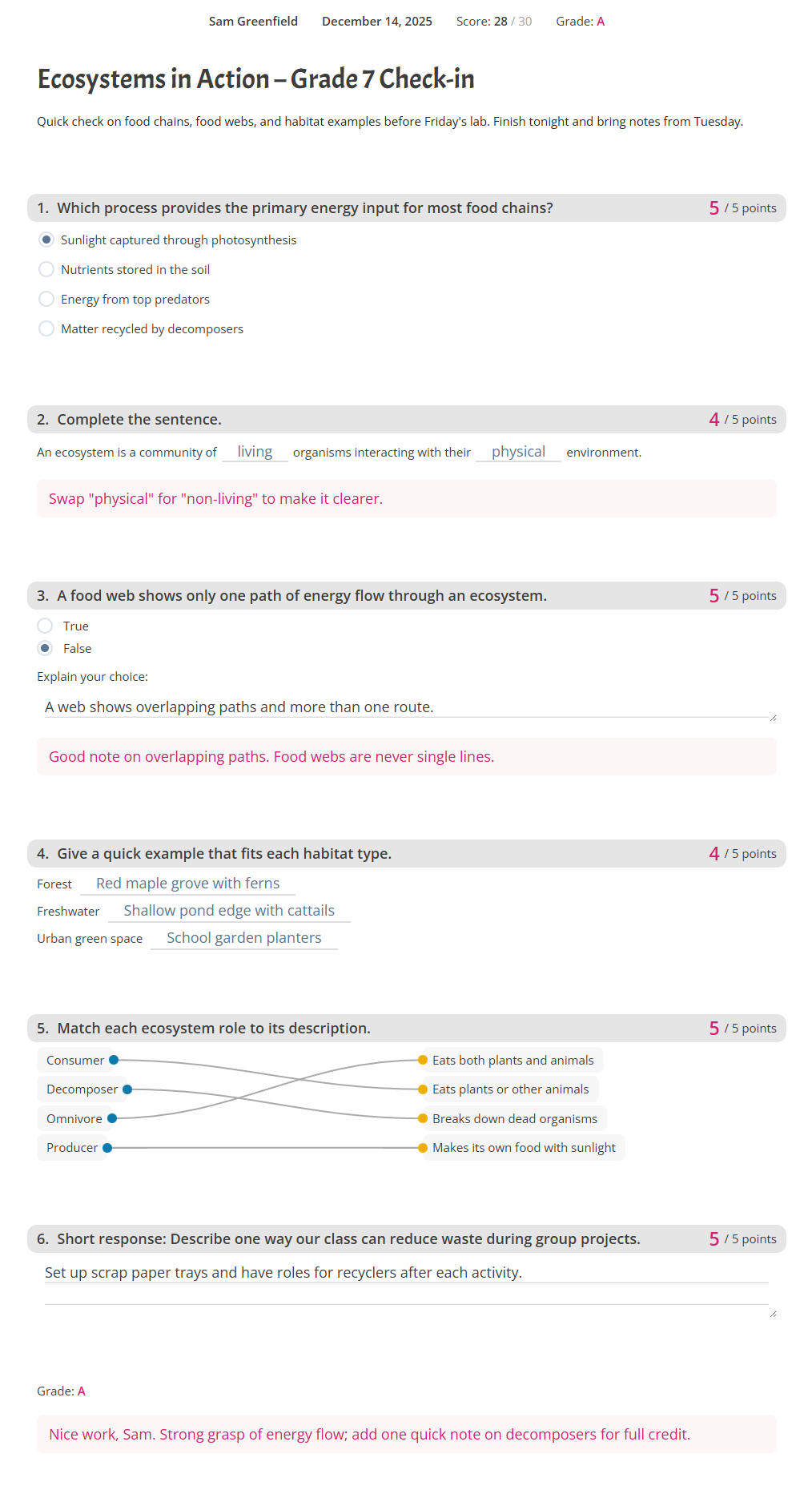
Open any submission to leave feedback per question and add a grade when grading is enabled. Points roll up automatically when you score individual questions, so students see where they earned or lost marks.

Reviewing and grading an assignment submission

Start your first assignment

Create and preview assignments on the free plan. Upgrade to Standard or higher to send them out and track submissions.

Create your free account

What teachers achieve with assignments

Fewer late submissions

Set due dates, see past-due at a glance, and nudge students before work piles up.

Faster grading

Enable points and review per question so you can score quickly and share grades sooner.

Clearer feedback

Leave targeted comments on each answer, so students know exactly what to improve.